Thursday, 27 October 2016

How to fix windows update when gets stucked

Windows Update is supposed to work silently in the background, but it may refuse to continue if it can’t install an individual update.
This can happen on Windows 7, 8, or 10, but it’s become especially common with Windows 7. Sometimes updates will error out, or sometimes Windows Update may just get stuck “searching for updates” forever. Here are a few ways to give it a kick start.

Windows 7, 8, and 10: Run the Windows Update Troubleshooter

Windows includes a built-in troubleshooter that may be able to help fix a stuck update. It’s the easiest method to try, so go ahead and run it first. The troubleshooter performs three actions:
  1. It shuts down Windows Update Services.
  2. It renames theC:\Windows\SoftwareDistributionfolder toC:\Windows\SoftwareDistribution.old, essentially clearing the Windows Update download cache so that it can start over.
  3. It restarts the Windows Update Services.
This troubleshooter is available on Windows 7, 8, and 10. You’ll find it in the same place on all modern versions of Windows.
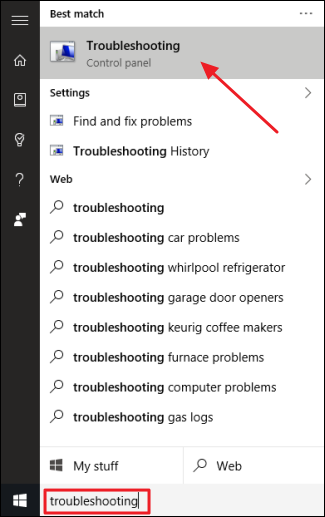
To run the troubleshooter, hit Start, search for “troubleshooting,” and then run the selection that search comes up with.
start_trouble_small
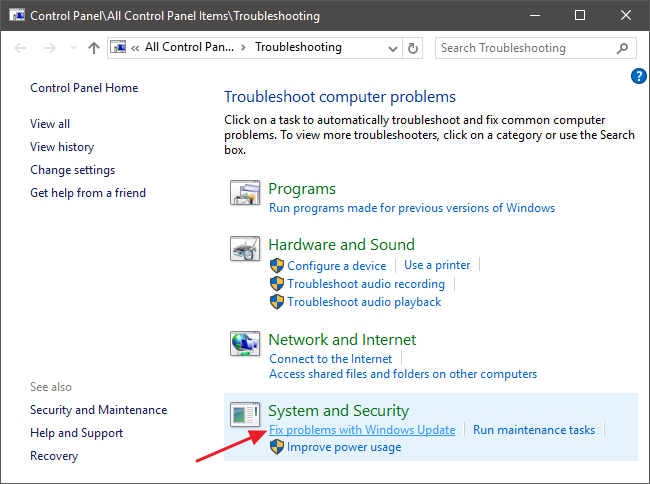
In the Control Panel list of troubleshooters, in the “System and Security” section, click “Fix problems with Windows Update.”
trouble_control
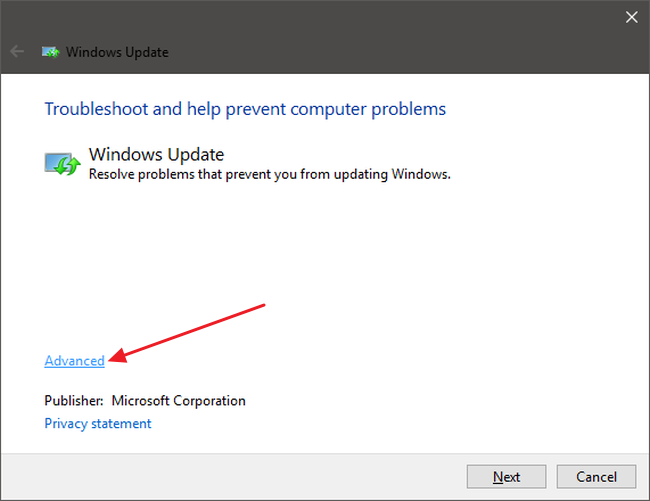
In the Windows Update troubleshooting window, click “Advanced.”
wu_trouble_1
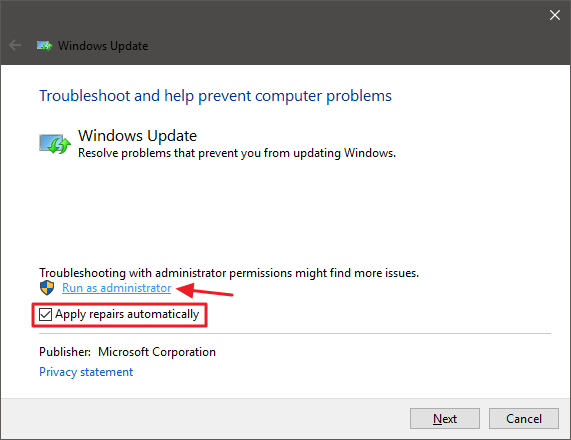
In the advanced settings, make sure that the “Apply repairs automatically” check box is enabled, click “Run as administrator” and then click Next. Giving the tool administrative privileges helps ensure that it can delete files in the download cache.
wu_trouble_2
The troubleshooter works through its process and then lets you know whether it could identify and fix the problem. Most of the time, the troubleshooter can successfully remove a stuck update from the queue. Go ahead and try running Windows Update again. Even if the troubleshooter says it couldn’t identify the problem, it’s possible that the actions of starting and stopping the service and clearing out the cache did the trick.

Windows 7, 8, and 10: Fix Windows Update by Deleting Its Cache Manually

If you’re still having trouble after running the troubleshooter (or if you’re the type that just likes to do things yourself), performing the same actions manually may help where the troubleshooter didn’t. We’re also going to add the extra step of booting into Safe Mode first, just to make sure that Windows can really let go of that cache of Windows Update downloads.

Hide Items in control panel windows

Why bother doing this? You might share a computer and not want some users having access to some settings. Or you might have a computer in your business that is available to guests and customers that you want to lock down a bit. Of course, you could also go all in and disable the Control Panel and Settings interface completely. But if you don’t want to go that far, hiding items from the Control Panel is an easy way to protect specific settings from being changed. If you have a Pro or Enterprise edition of Windows, you can use the Local Group Policy Editor to make the change. Users of any edition of Windows can also make a quick edit to the Registry.

Home Users: Hide Control Panel Items By Editing the Registry

If you have Windows 7, 8, or 10 Home, you will have to edit the Windows Registry to make these changes. You can also do it this way if you have Windows Pro or Enterprise, but just feel more comfortable working in the Registry. (If you have Pro or Enterprise, though, we recommend using the easier Local Group Policy Editor, as described in the next section.)
Standard warning: Registry Editor is a powerful tool and misusing it can render your system unstable or even inoperable. This is a pretty simple hack and as long as you stick to the instructions, you shouldn’t have any problems. That said, if you’ve never worked with it before, consider reading about how to use the Registry Editor before you get started. And definitely back up the Registry (and your computer!) before making changes.

Windows 10 Tricks ( 100℅ working )

is brimming with new and updated features for streamlining all your computing tasks. The new release combines the familiarity of Windows 7 with the functionality of Windows 8.
While you can use some features to increase your productivity intuitively, others aren't so forthcoming and require a trip down the menus and settings before they make your life easier.
We've overhauled our Windows 10 tips and tricks guide by grouping the tips into categories, so it's now even easier to find the best Windows 10 tips for your needs.
In this guide we'll take you through Windows' nooks and crannies and help you tweak your Windows installation in a variety of ways to suit your style of working.
Using the tips, you'll be able to shave some time off of tasks that need to be performed regularly and streamline your navigation around the system. We'll also share tips to help tweak the new features based on your preferences, enabling you to use your new installation productively.
Also make sure you check out our huge collection of guides on how to use Windows 10 to make sure you get the most out of the new operating system.

1. Use Custom Install

When you're setting up Windows 10 on a new PC, make sure you select the Custom install option instead of the default Express install.
It's more involved but lets you modify important aspects of your installation such as the privacy settings.

2. Remove old files after installing Windows 10

If you have no intentions of reverting to the previous version of Windows, you can save disk space by getting rid of the old OS files. Head over to Control Panel > System and Security > Administrative Tools > Disk Clean-up and toggle the 'Previous Windows installations' box in the list.

3. Sign out of Windows

The Power menu in the Start menu only includes options to Shutdown and Restart the computer. To sign in as another user bring up the Start menu and click on your name displayed at the top.
This brings up a menu which includes the Sign out option.
Windows 10 tips and tricks

4. New Action Center

Windows 10 includes a new Action Center that keeps track of notifications from all over the system.
Click on the text bubble icon in the system tray and the panel flows out from the right-hand side of the screen.

5. New snap keyboard shortcuts

Keyboard warriors can save time and snap windows without using the mouse. Use the Win key + Arrow key to snap to one of the four corners of the screen and double-up commands to reach the quadrants.
For example, pressing Win + Right Arrow, then Win +Up Arrow places the current window in the top-right corner.

6. Make Windows touch-friendly

If your computer has a touch screen you can manually enable Windows 10's touch-friendly Continuum interface to operate Windows in a tablet mode.
Head to Start > Settings > System > Tablet Mode to manually alter its behaviour.

7. Disable WiFi Sense in Windows 10

If you're worried about Wi-Fi Sense's security implications you can disable it by heading to Start > Settings > Network & Internet > Wi-Fi > Manage Wi-Fi settings.
Now disable all options and ask Windows 10 to forget any Wi-Fi networks you've signed into in the past.

8. Customise Privacy settings

To take charge of general and app-specific privacy options head over to Start > Settings > Privacy. From here you can also individually define which apps can access the connected hardware like cameras and microphones.

9. Customise Battery Saver

The Windows 10 Battery Saver clamps down on background activities in order to maximise your system's battery.
You can enable it from under Start > Settings > System > Battery Saver. It comes online automatically when the charge drops below 20%.

10. Unlock PC with a fingerprint

Windows 10 includes a suite of new biometric security features known as Windows Hello. If you have the required hardware then you can use fingerprint detection or face recognition to log in.
Head to Start > Settings > Accounts > Sign-in options to explore the various available options.
For more information on using biometric security, check out our guide on how to use Windows Hello.

11. Stream media across the network

Go to 'Control Panel > Network and Internet > Network and Sharing Center' and click on 'Change advance sharing settings'.
Then go to All Network section and click the 'Choose media streaming options' link and turn on media sharing.
Windows 10 tips and tricks

12. Monitor with Task Manager

Windows 10 also includes an improved Task Manager with a better layout and easily digestible information and useful graphs.
Familiarise yourself with the Task Manager to monitor the resources of your PC and to terminate unresponsive processes.

13. Create a local account

If you don't want the benefits of OneDrive synchronised account, you can create a standalone offline account. Head to Start > Settings > Accounts and click the 'Sign in with a local account instead' link.
Windows 10 tips and tricks

14. Contact Support

If you need help setting up a Windows app or are facing any issues, you can use the Contact Support app under the Start > All apps menu.
The app will help you find discussions relevant to your technical problems on the community forums.
Android tricks that u dont know must watch

1. Only hear from the people you want

Android Tips and Tricks
Why, oh why, did you give Jeff from the office your number? Seriously, 16 cat meme texts in 3 days, what's his problem? If you don't want to hear from certain people, you don't have to. There's no need to change your number or be forced into awkward conversations either. Instead you can set your phone to only deliver messages from those you actually want to talk to.
Hitting your volume toggle will give you alert options. Hit Priority and the Settings cog. Here you can choose who you receive calls, messages and reminders from. Perfect for when you want to block out the overly chatty 'friends' you'd rather avoid.

2. Give two fingers to quick settings

Android Tips and Tricks
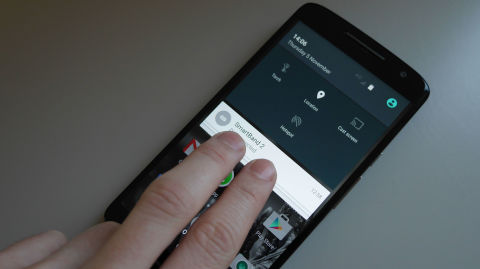
You probably know that swiping down from the top of your Android handset's home screen will launch the notifications menu. Did you know though that throwing a second finger into the mix brings quick settings to the fore? No, didn't think so.
Saving precious seconds and a second swipe, the double-digit motion puts Wi-Fi controls, screen casting options and Bluetooth shortcuts at your fingertips with literally zero hassle and minimal effort. Handy.

3. Set your phone to automatically unlock when you're at home

Android Tips and Tricks
Entering those four-digit pins is essential to keep out unwanted prying eyes. But when you're at home they can be an irritating chore that takes time away from your latest Facebook binge. You can set your phone to automatically unlock when you're at home, though, removing this irritation while retaining your privacy when you want it.
In Settings, go to Security >> Trust Agents >> Smart Lock. Activating this will allow you to set parameters for when you want your device to ditch the passcode. Such as when you're at home or in the office, or when your phone recognises your face. Yes, really. Your handset is watching you.

4. Extend your phone's battery life

Android Tips and Tricks
ADVERTISEMENT - CONTINUE READING BELOW
Android 6.0 might have introduced the battery-boosting Doze feature, but if you're still waiting for your Marshmallow-flavoured fix, there are still plenty of ways to enhance your handset's staying power. Under theBattery controls in Settings, your phone should have a Power Saver Mode option.
Enable this to reduce background features and survive that night bus ride home. Helping eke out your depleted power supply, this will set your emails to fetch and turn off some of the 76 apps that send you notifications every 30 minutes.

5. Hide your embarrassing bits from friends

Android Tips and Tricks
There are certain things on your phone you probably don't want others to see. You browser history, embarrassing taste in music and the results of your endless selfie practice for a start. Fortunately, you can keep this mock-inducing content to yourself, even when letting mates use your phone.
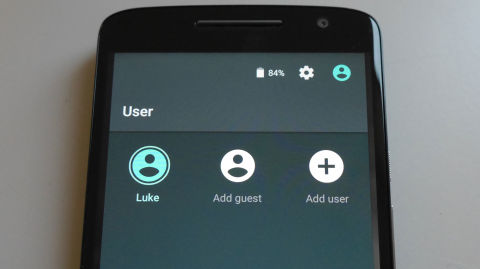
'How?' We hear you ask with just a hint of desperation in your voice. Drag down the quick settings menu (with two fingers like we showed you), and tap the user icon in the top corner. Here you can 'Add a guest' and limit access to only what you're comfortable with people seeing.

6. Avoid bill shock by controlling your data usage

Android Tips and Tricks
Unless you've got deep pockets, you're not going to want to go over your monthly data allowances. But worry not, if you do, Android's got your back again - and your wallet's too.
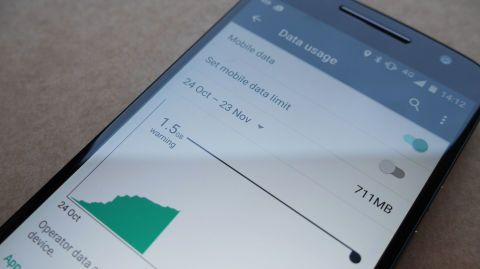
Visit Settings >> Data Usage. Not only can you see a graph of how much data you've churned through over the past month – based on the timeframe of your contract, not the calendar month – you can set self-imposed data limits and warning markers. Take that O2, Vodafone et al.

7. Dial a contact, the easy way

Android Tips and Tricks
Nobody remembers phone numbers anymore. That's what phones are for. But when you've got hundreds of people in your contacts book, finding the number you're after can be a slow process. Unless, that is, you simply type out their name in numerical form.
In the keypad, just start typing the desired contact's name in digits, using old keyboard speak as your translation tool. So, as an example, to find a contact called Mike, simply type 6,4,5,3. That's m (6),i (4),k (5),e (3) in case you were wondering. Time saved, contact found, sorted.

8. Fill your phone with hundreds of free apps

Amazon Underground
You aren't limited to Google's Play Store for filling up that freshly purchased handset. If you're an app fanatic but don't like parting with your cash, Amazon Underground is the service for you.
Simply in return for signing up, you'll get loads of normally paid-for apps totally free of charge. Meaning you can enjoy things likeMonument Valley, Cut the Rope and everyone's favourite animal impersonator,Goat Simulator, without loosening those purse strings. They aren't going to hit you for costly in-app purchases either, and many have their bonus content offered up without charge: when we say free, we mean it. So think of all that spare cash you can now blow on Clash Of Clans instead...